How to Create Minecraft Functions (.mcfunction) and Use the /function Command
Minecraft Java Edition 1.21+ and 26+ – Datapack Folder Setup + mcfunction Tutorial
In this tutorial, you will learn how to create Minecraft functions using .mcfunction files and how to run them with the /function command.
This method works in Minecraft Java Edition 1.21+ and 26+ and is one of the best ways to organize commands, automate systems, and run multiple commands at once without using tons of command blocks.
You will also learn how to set up the correct datapack folder inside your world and how to check if your function is properly loaded in-game.
Step 1: Let's start by opening the Minecraft folder. To open it, press the Windows key and R at the same time, or if you prefer, just type run in the search bar.
I don't know how to open it on Mac or Linux; check elsewhere how to open the folder on these systems.
Continuing, as soon as the Run window opens, type %appdata% and press Enter.
Look for the .minecraft folder (it's usually at the top of the page) and then open the saves folder.
Select the folder of the world where you want to set up the functions.
Your world will have several folders; look for the datapacks folder and open it.
Step 2: When you get to the datapacks folder, it will probably be empty. I have already prepared the necessary subfolders to make things easier, and inside, there is a ready-to-use function.
Now download this ready folder drag it into the datapacks folder and extract the .zip file.
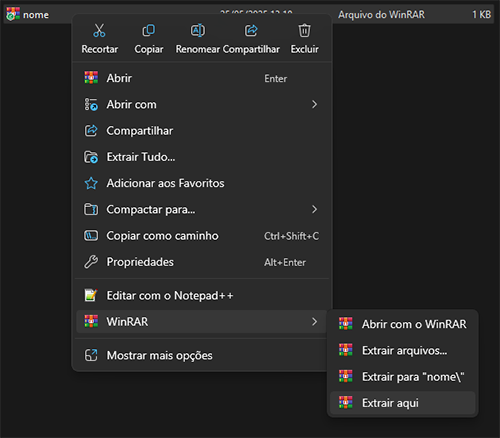
I chose to extract it with WinRAR, and I recommend installing it on your computer.
Once you're done extracting, delete the .zip file.
You can name this folder whatever you like. Notice that inside it, there are other folders — I'll explain more about that.
Step 3: Notice that we have the comandos folder inside the data folder. You can change the name of the comandos folder to anything, but remember, this will affect how you call the function in Minecraft.
Inside the comandos folder, we have the function folder. This is where your functions will go. Notice that I left a ready-made function inside.
You can copy and paste this file to change its name.
Open it with Notepad or Notepad++ and start adding your commands.
Very important! Always test your commands before putting them there,
Because any command errors will prevent the function from loading in Minecraft.
Step 4: Let's call the function inside Minecraft.
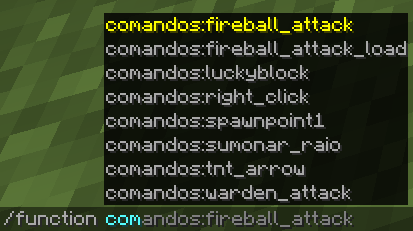
When I start typing the name of the comandos folder, the functions appear.
This is a sign that everything is working, including the commands inside these functions.
If you did this while your world was open, type /reload in the chat and run this command